Characters
Characters are the heart of Front Porch AI. This guide covers everything about them — where to find ready-made ones, how to make your own, what's actually inside a character card, and how to keep a growing library organized.
What Is a Character Card?
A character card is a single file that holds everything about an AI character: their name, appearance, personality, the situation you meet them in, their opening message, and samples of how they talk. Share the file, and anyone can chat with the exact same character.
Cards come in two common shapes:
- PNG image — the most common. The picture is the character's avatar, and all the personality data is hidden inside the image file itself. This is the format most character-sharing sites use.
- JSON file — the same data as plain text, without an image.
Front Porch AI reads and writes the V2 card format — the same standard used by SillyTavern, Chub.ai, RisuAI, and most of the character-chat world. Older V1 cards import fine too. Cards travel freely between these apps: anything you make here works there, and vice versa.
Front Porch's own extras (the Realism Engine starting state, chat colors, and so on) ride along inside the card's standard extensions area — I call that block "V2.5", but the file itself is still a plain V2 card that any other app can open.
Rescuing Backyard AI characters: Front Porch AI also imports Backyard AI's
.byafarchive format, so characters stranded there can move in. They're converted to standard V2 cards on the way, and the import screen offers to bring their chat history and their Backyard sampler settings across too, so the imported chat picks up where it left off and sounds the way it used to.
Getting Characters Into the App
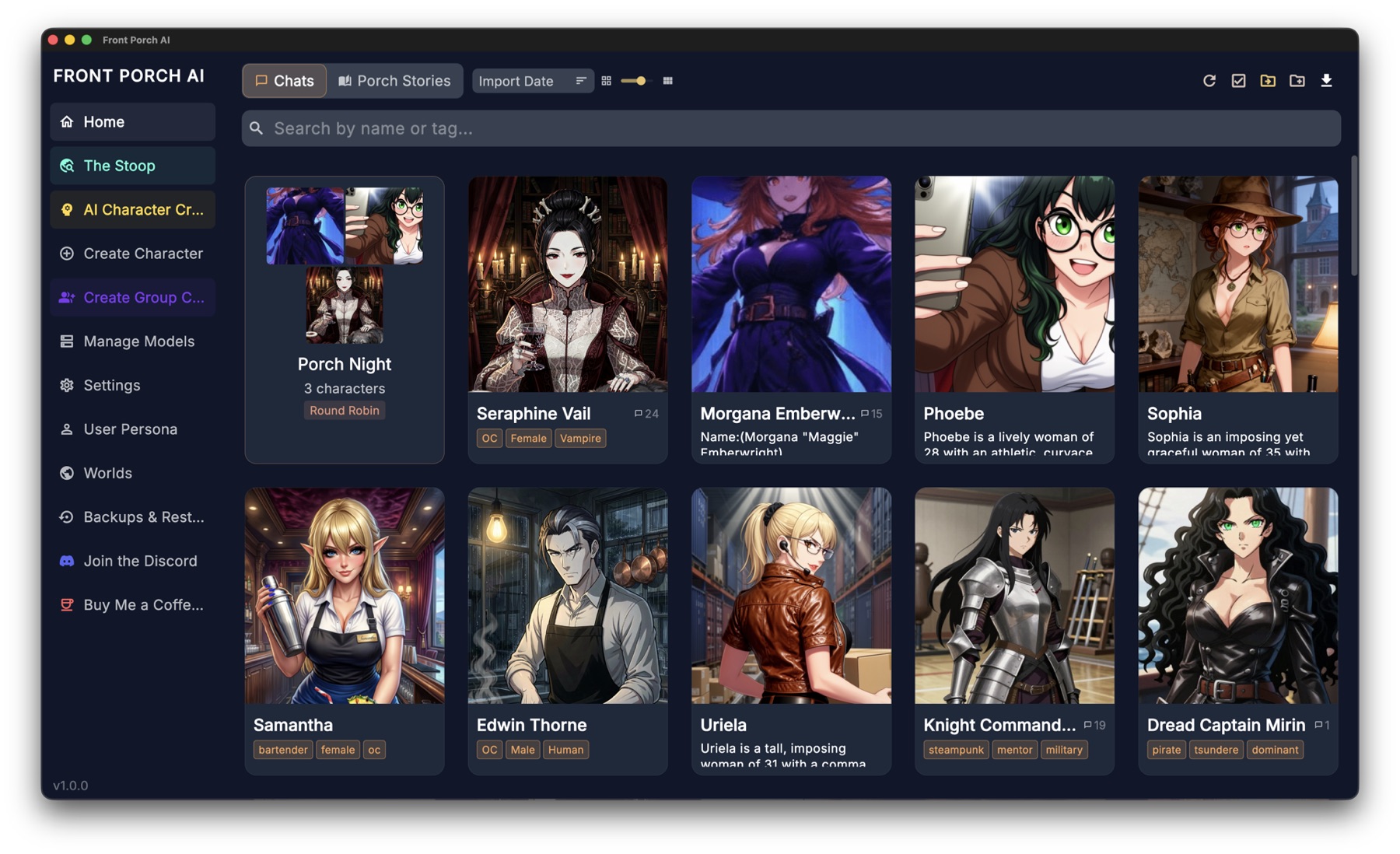
Everything starts from the home screen — your character library.
Import files you already have
The ⬇ download icon at the top right of the library toolbar opens the import menu, with three options:
- Import Cards — pick one or more
.pngor.jsoncard files. One file at a time gives you a tag dialog so you can label the character on the way in; picking several at once runs a bulk import with a progress bar (and a Cancel button) instead. Same name as a card you already have: skip / replace / keep both (rename). - Import Folder — point it at a directory and the app scans it top to bottom, including subfolders, finding every PNG card and
.byafarchive inside. It shows you a breakdown of what it found and lets you tick which kinds to bring in before anything is imported. Bulk folder import does not ask tags per file. - Import Backyard AI (.byaf) — Backyard archives, one at a time (with the full preview screen) or in bulk. Can carry personas as well as cards; collisions use the same skip / replace / keep-both dialog.
- Import from a SillyTavern database — a SQLite file (not only PNG/JSON/BYAF). Characters and chats come across. Same collision dialog.
Two things the importer does quietly on your behalf:
- Re-importing a card you already have — if it's the same character (the card carries a hidden stable ID), it updates your existing entry in place and your chats with them survive. That's how you can edit a card elsewhere and bring it back without starting over.
- A different card with a name you already use — you get a choice: Skip, Keep both (rename), or Replace. No silent overwrites.
An empty library also offers Create New, Import Card, AI Create, Bulk Import and Import BYAF buttons right in the middle of the screen.
The Stoop — the built-in community hub
The Stoop is Front Porch AI's own community hub, and it's in the sidebar of every build — no nightly required.
- Browse with filter chips for All / Singles / Groups / Worlds, sorted by Newest, Top, or Downloads — plus Mod's Picks, From Creators You Follow, and Groups rows on the front page.
- Smart search — type a name,
@creatorto see one person's cards, or#tagto browse by tag. - Download drops a character straight into your library, a group straight into your groups, and a place straight into your Worlds — no files to shuffle. (Sharing places on The Stoop needs Front Porch AI 1.2 or newer; older versions can't open
.fpworldfiles at all.) - Creator profiles — a profile picture, "on the porch since" date, follower count, lifetime stats, a short bio, up to four links, and their approved cards laid out as an art grid. Follow the ones you like.
- Share your own — a four-step wizard (Pick → Details → Content → Review) that submits a character, group or place for moderator review. You need a confirmed email address to upload — and to set a profile picture; browsing and downloading work without one.
Using The Stoop is entirely optional. On the web hub you can browse and download with no account. Sharing, comments, reports, and votes need a free account, and it's strictly 18+. Adult cards are hidden until you turn them on, and everything shared there is reviewed by a moderator. The rest of the app stays fully offline whether or not you ever sign in. See the FAQ → The Stoop.
Creating Your Own Character
There are two paths: let the AI build the character from your idea, or write every field yourself.
The AI Character Creator
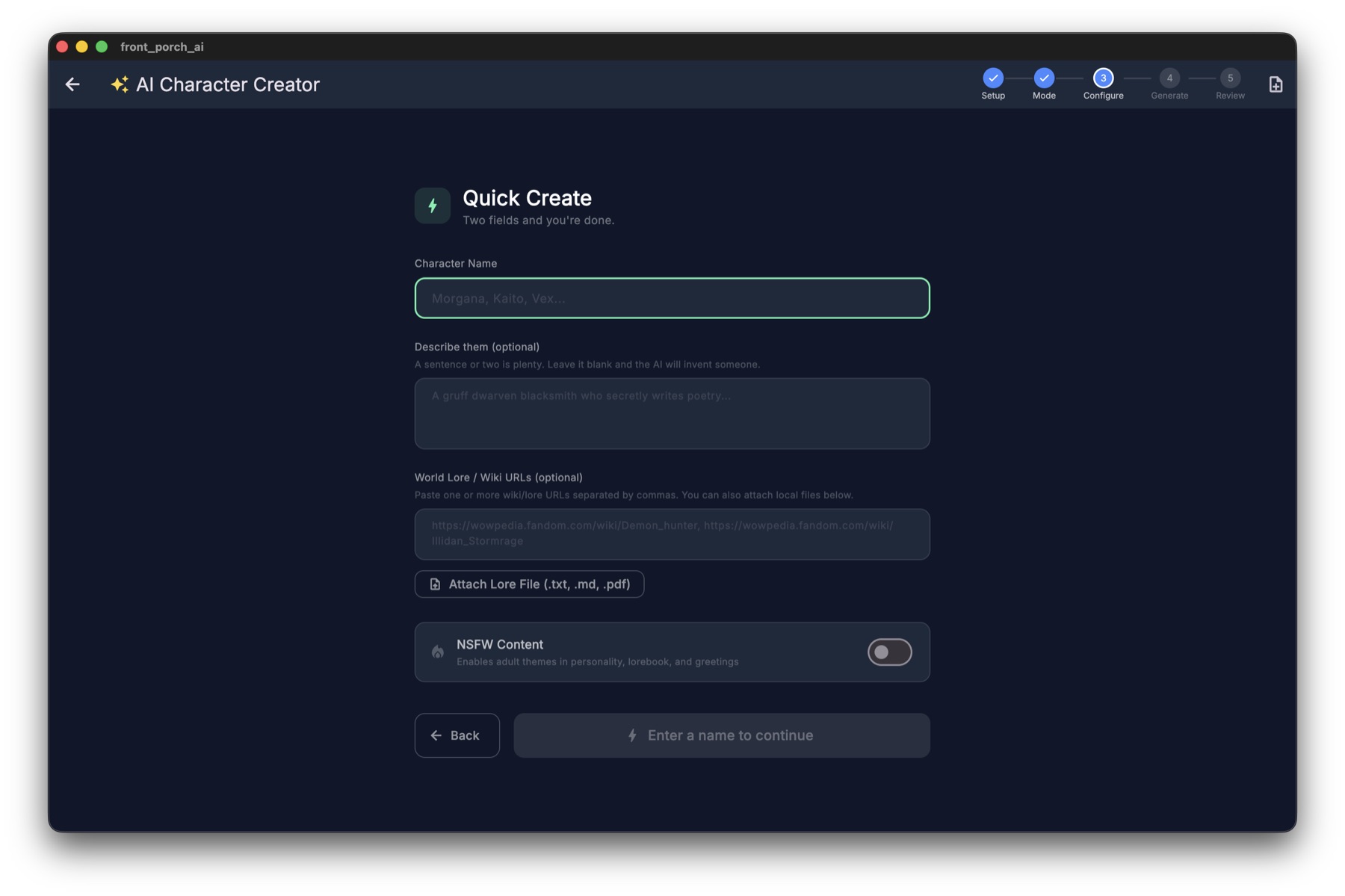
Open AI Character Creator from the sidebar and pick how much control you want:
- Quick Create — the fastest path. Give it a name and a short description ("a sarcastic Victorian inventor who loves tea"), and the AI writes the whole card: description, personality, scenario, first message, and example dialogue.
- Automated Creator — pick personality traits, genres, and tones from tappable bubbles, and the AI fills in the gaps around your choices.
- Guided Creator — write out your vision in your own words, with guided prompts helping you cover appearance, personality, and backstory. Best when you already know exactly who this character is.
A few things worth knowing, whichever mode you pick:
- Alternate greetings — the creator can write up to 5 extra opening messages alongside the first one, each with its own tone (playful, dramatic, and so on). When you start a chat, you can flip between them and begin the story from whichever opening you like. Each alternate can also carry its own Realism/Needs opening (mood, bond, trust, clock, needs, wardrobe) so an angry greeting does not start with the friendly first-message seed. Groups use the same greeting picker when the opener is a custom group first message (group alts + seeds) or a member's first message (that member's alts + seeds). Regen/continue/swipe on replies is the same in 1:1 and groups; the greeting picker is the extra row on message 1 only, before anyone has typed.
- World lore — paste one or more wiki or lore page URLs (a Fandom wiki, for example), or attach local files (
.txt,.md,.pdf,.json,.csv), and the creator weaves that knowledge into the character and their lorebook. - Lorebook generation — the creator can write world-knowledge entries to go with the character (more on lorebooks below).
- Portrait & avatars — if you've connected an image generator (see the User Guide), the review screen can generate a matching portrait and a whole set of expression images.
- If the AI's response gets cut off mid-generation, the creator notices and automatically asks for whatever's missing.
When generation finishes you review every field, edit anything you like, and save. The result is a normal, fully editable card — nothing about it is locked to the AI that wrote it.
Tip: The creator leans on your currently active AI model. A smarter model writes noticeably better cards, so some people temporarily switch to a remote API just for character creation, then switch back to their local model to chat.
The Manual Creator
Prefer to write it all yourself? Create Character walks you through seven steps, in order: Identity (name, tags), Personality (description, personality, scenario, advanced prompts), Dialogue (first message, alternate greetings, example conversations), Lorebook, Realism (the character's starting emotional state — see below), Review, and finally Portrait & Avatars.
The card is saved when you leave the Review step, before the portrait stage — so a failed image generation can never cost you the writing.
The Realism step sets where the character starts: their initial bond and trust toward you, their mood, the time of day and story start date, and which Realism Engine features are on. These become the character's defaults — every new chat begins from them. (Full details in the Realism Engine guide.)
What's Inside a Card
A quick tour of the fields, whether you're writing your own or editing an import:
| Field | What it does | Tips |
|---|---|---|
| Name | The character's display name | |
| Description | Appearance, clothing, mannerisms, voice | Be vivid and specific — this is the model's mental picture |
| Personality | Core traits, speech style, likes and dislikes | Works together with Description |
| Scenario | The situation your story starts in | Where are you two, and why? |
| First Message | The character's opening line | Long and atmospheric is fine |
| Example Dialogue | Sample exchanges showing how they talk | The single biggest lever for a consistent voice — a handful of good exchanges works wonders |
| Alternate Greetings | Extra possible openings | Flip between them when starting a chat. Each alt can carry a Realism/Needs overlay (see below) |
| System Prompt | Hidden instructions for the AI, specific to this character | Optional; overrides the global one |
| Post-History Instructions | A reminder slipped in after the recent chat history | Good for "always stay in character" style nudges |
| Tags | Labels for search and filtering | |
| Lorebook | World-knowledge notes that activate when their keywords come up in chat | Great for places, factions, and backstory the character should "know" |
| Worlds | Shared settings attached to this character | See Lorebooks & Worlds |
| TTS Voice | A voice just for this character | Empty = follow Settings → Voice. A pick overrides everywhere that character speaks. Catalog + preview is in TTS settings, not this row. |
| Ambitions | Plan-line chips on Details | Not the Personality paragraph. |
| Likes / Dislikes | Chip lists on Details | Separate from Personality prose. |
| Intimate into / not into | Chip lists | Only if Settings → General → 18+ themes is on. |
| Occupation | Job, brief, hours, weekdays | Seeds Clock In for new chats. |
| Worn / carrying | Wardrobe + pockets on the card | Seeds Pockets. The Pockets switch still has to be on in the chat. |
Greeting seeds (per-alt opening state)
The first message (first_mes) always uses the card-level Realism/Needs seed. Alternate greetings may each carry a sparse overlay:
- Null / missing slot — unauthored. The engine Reads the Room from that greeting's text.
- Non-null overlay, including empty
{}— authored. Skips Read the Room.{}means inherit the card (or group) defaults; present keys override them. - Swipe 0 restores that member/group baseline (the card seed on 1:1, the group blob baseline on a custom group opener).
- Groups match 1:1. Unauthored group/member alts Read the Room the same way; authored overlays (including
{}) still skip. The editor must not write{}just because the seed toggle is on with no fields set — that stays null until a field is authored.
Macros
Card text isn't just plain writing — the same {{macro}} tags SillyTavern uses work here, in descriptions, system prompts, scenarios, greetings and lorebook entries. The two you'll use constantly:
{{char}}— the character's name{{user}}— yours
Write "{{char}} smiles at {{user}}" and every player who imports the card sees their own name in the story.
Beyond those, cards can use {{persona}}, {{description}}, {{personality}}, {{scenario}}, {{lastmessage}}, {{time}}, {{date}}, {{weekday}}, {{random::a::b::c}}, {{pick::a::b::c}}, {{roll::2d6}}, {{setvar}}/{{getvar}} and more. The character editors tint macro tags as you type, so a missing brace is easy to spot. Macros are deliberately not resolved in what you type into the chat box — your messages stay exactly as you wrote them.
Editing & Managing Your Library
Right-click any card in the library to get at all of this. (Folder cards also have a ⋮ button.)
- Edit Character — a four-tab editor (not the seven-step Create wizard): Details (name, tags, description, personality, scenario, ambitions, likes/dislikes, occupation, intimate chips, worn/carrying, Realism defaults, voice), Dialogue, Lorebook, and Worlds. Portrait lives in Avatar Gallery, not a fifth tab. Edits to Realism defaults apply to new chats; conversations already in progress keep their living state.
- Worlds tab — attach Places on the card so new chats inherit climate/lore without opening Story Tools first.
- Import Character Lore — pull another card's lorebook entries into this character. Not the same as Import Lorebook (that page can send a file to a new Place, characters, a group, or the current chat).
- Avatar Gallery — portraits, alternate looks, expression images. You can crop in-app before save. The ★ marks the canonical avatar (baked into the PNG on export).
- AI Enhance — Home right-click only (not Porch Life). Interviews from a chosen chat, you tick what to rewrite, saves
Name (Enhanced), optional bring-chats. - Duplicate Character — full copy named "(duplicate)".
- Export PNG / Export JSON.
- Move to Folder… / Remove from Folder / Delete.
- Start New Chat — always asks which persona. It does not inherit the last chat.
And across the whole library:
- Folders — create, rename, nest into subfolders, and drag cards straight onto a folder to file them. Group casts live in folders too, exactly like characters. Deleting a folder asks whether you want Delete Folder Only (everything inside returns to the top level) or Delete Folder + Characters (permanent, and gated behind typing DELETE).
- Breadcrumbs — the path across the top ("My Characters / Cast / Villains") is clickable, so you can jump to any level without tapping Back over and over.
- Multi-select — the checkbox button turns on selection mode for moving or deleting a batch at once; characters and groups can be mixed in one selection.
- Search & sort — search by name or tag, and choose how wide to cast the net: This Folder Only, Folder & Subfolders, or All Characters. Sort by Name (A→Z), Recent Activity, Import Date, or Messages Sent.
- Grid size — a slider resizes the cards from compact to poster-sized.
- Refresh — re-reads the library from disk, so cards written by an outside tool (like Character Card Forge) show up without restarting the app.
- Per-character chat colors — each character can have their own bubble colors and font, set from UI Settings inside their chat. They're stored in the card, so they survive export and import. (A per-chat theme, if you've picked one, wins over them.)
Your library is also mirrored in the companion web/mobile UI, folders and all.
Expression Images
Give a character a set of portraits — one per emotion — and their avatar changes live as their mood shifts during the conversation: smiling when they're happy, glowering when they're angry.
- Manage them in the Avatar Gallery (right-click a character in the library, or open it from the chat sidebar). Up to 30 images per character.
- Import ZIP sprite pack takes a whole pack in one go. SillyTavern expression packs work as-is — the names inside are matched the usual way (
joy.png,anger-1.png,sadness_2.png), folders and all — so packs you find in the community drop right in. A file only lands if its name is one of the app's own emotion labels (sadness, notsad), either on its own or followed by-,.or_and anything else — sosadness-2.pngworks butsadness2.pngdoesn't. Any other image in the pack is reported back as "unrecognized" and left out. - Generate them instead, if you have an image generator connected — from the manual creator's Portrait & Avatars step, or from the AI creator's review screen: either the 8 base emotions or the full set of 28.
- The app figures out the current emotion using either a small local classifier (fast, fully offline, and one click to download in Settings → Voice & Media) or the Realism Engine's deeper read of the scene.
- If an emotion has no image, the app quietly falls back to neutral, and then to the main portrait.
The Image Studio and User Guide → Appearance cover display: sidebar, chat background, or both.
Group Cards — Sharing a Whole Cast
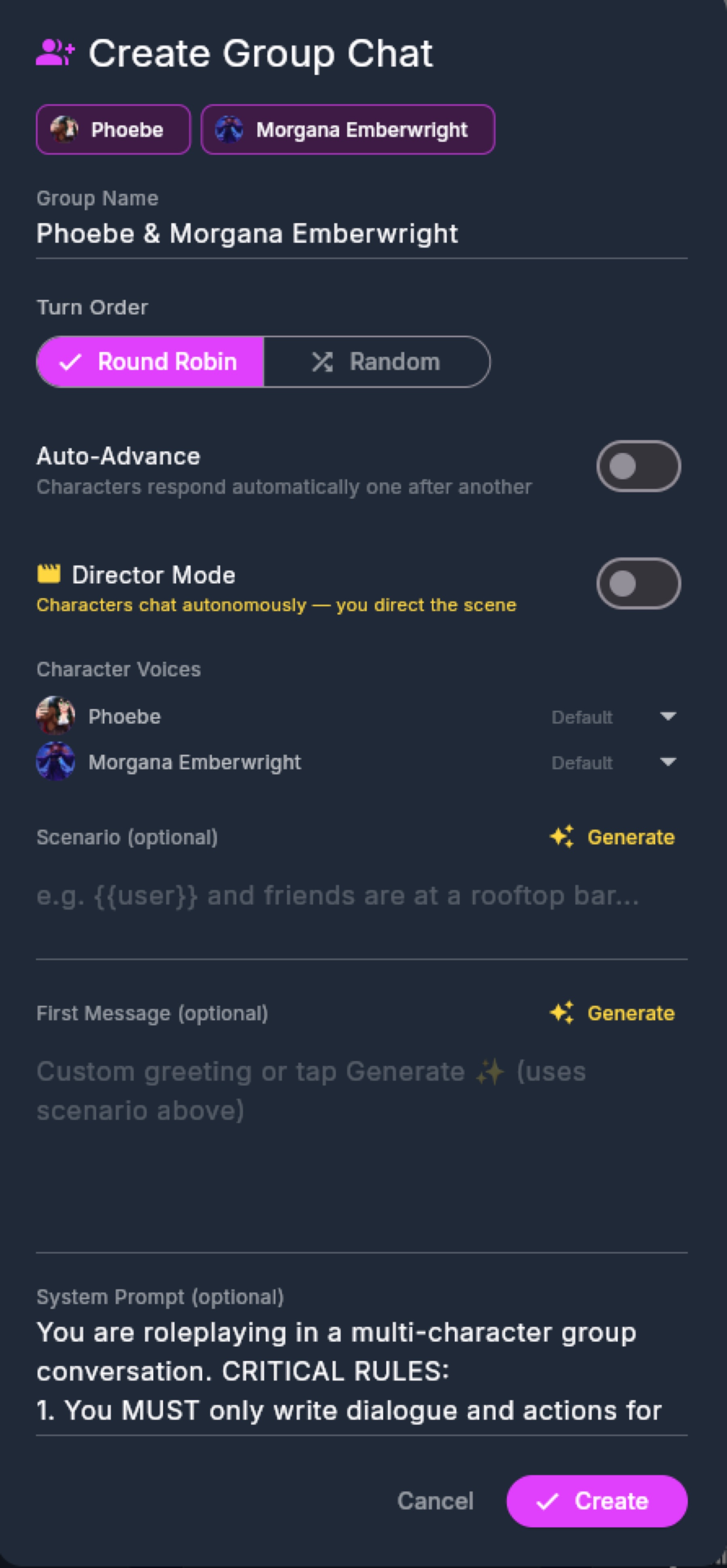
A Front Porch original: export an entire group chat as one PNG file — every member with their avatars and lorebooks, the group's scenario and opening message, the speaking order, attached worlds, per-member objectives, and the cast's starting Realism state (who trusts whom, everyone's mood and needs). Import it on another machine and the whole living scene rebuilds itself, ready to play.
A few notes:
- Importing one is no different from importing a character — pick it with Import Cards, on its own, and the app recognizes it as a group automatically. (Selecting a batch of files at once runs the plain-character bulk importer, which won't spot it.)
- Extract Characters copies every member of a group out into your library as standalone, fully editable cards.
- The group creator has a Realism card per member (opening bond/needs/wardrobe). That is not only on the 1:1 editor.
- To other apps, a group card looks like an ordinary image — the group data sits in a Front Porch–specific chunk, so only Front Porch AI can open it. Single-character cards remain universal.
- Group cards can be shared and downloaded on The Stoop, casts and all.
- Developers building tools that work with group cards can find the full format specification in the integration guide on GitHub.
Compatibility With Other Apps
Cards are meant to travel, and Front Porch AI takes round-tripping seriously:
- Reading: V2 cards from SillyTavern, Chub.ai, RisuAI, Agnai, and other standard exporters open correctly, whether PNG or JSON — as do older V1 cards.
- Writing: exported cards carry the standard
chara_card_v2marker and open anywhere the V2 standard is supported. - Nothing gets lost: Front Porch's own additions (Realism defaults, chat colors) live in the card's standard extensions area — the part of the format deliberately set aside for app-specific data. Other apps simply ignore it. And when a card arrives carrying another app's extension data, it's preserved untouched and written back on export.
In short: import, edit, export, share — the card keeps working everywhere, and nobody's data gets stomped on.
When an Import Goes Wrong
- "Import failed" or the character comes in blank — the PNG probably doesn't contain card data (it may be a plain image, or the data was stripped by an image editor or a site that re-compressed it). Re-download the original card file.
- Avatar shows as a gray square — re-open the character's Avatar Gallery and replace the portrait, or re-import the card.
- A
.byafimport fails — make sure the file is a genuine Backyard AI export and not renamed or partially downloaded. - A JSON card imports as gibberish — the file needs to be saved with UTF-8 text encoding; re-save it from a text editor.
- A group card won't import — pick it on its own with Import Cards (a multi-file selection runs the plain-character importer), and make sure it's the original file exported from Front Porch AI. The group data lives in a Front Porch–specific chunk that other apps and image editors strip out.
More fixes live in the Troubleshooting guide. If a card stumps you, bring it to the Discord — someone's usually seen it before.
Next up: bring your characters to life with the Realism Engine, or explore chats, voice, and more in the User Guide.